
Backups & integrity
There is no recovery and no cloud copy. If the drive holding your vault fails, a backup is the only thing that brings your diary back. Making one takes a click.
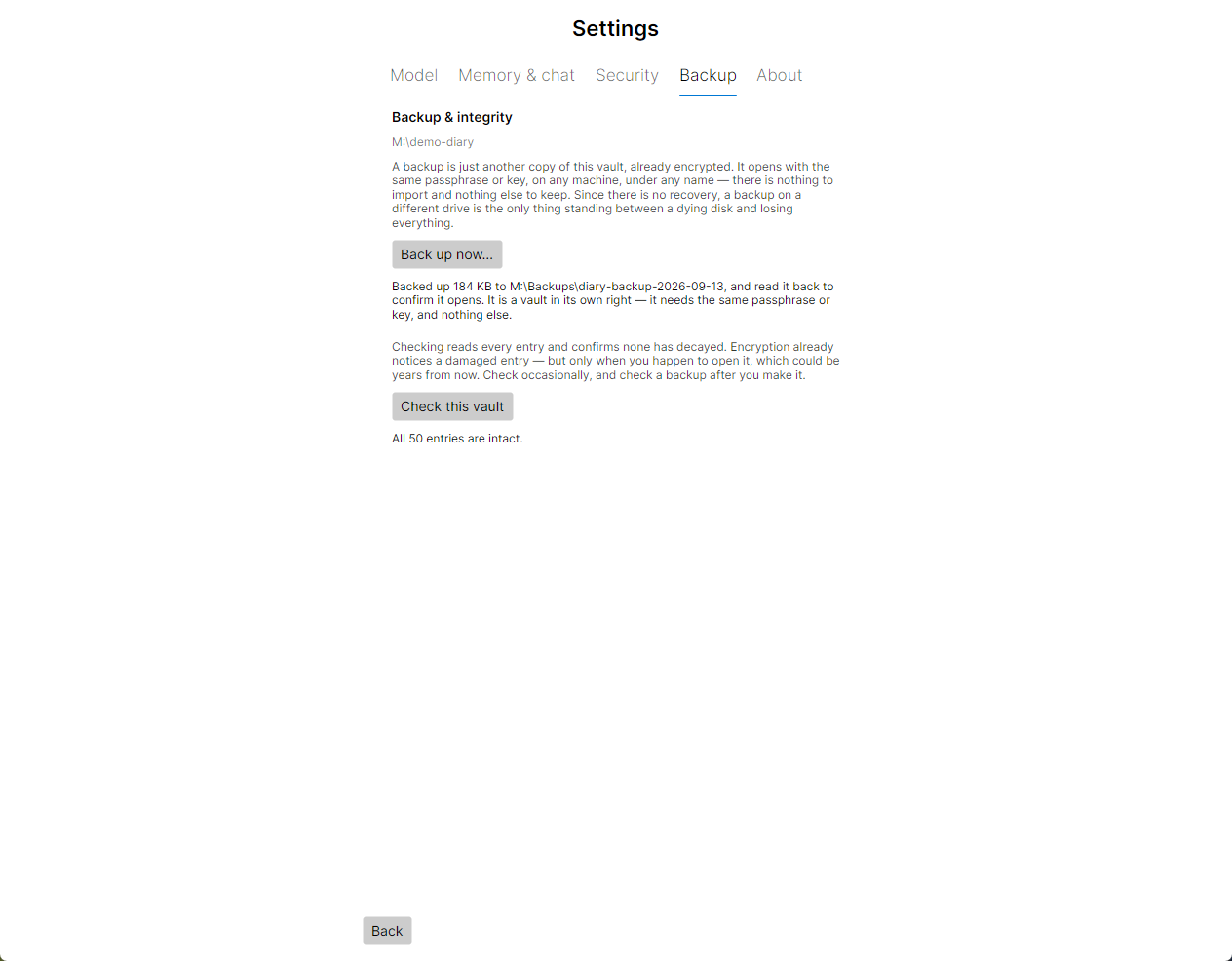
What a backup is#
A vault is a single file, and a backup is simply another copy of that file. It is already encrypted, so it:
- opens with the same passphrase or security key, and nothing else;
- works on any computer that runs My Thought Safe, under any file name;
- holds everything: conversations, memories, personas and settings;
- has no separate format, and nothing to import or export.
Models aren’t part of the vault, so they aren’t in a backup either. Keep a note of which model you use, or keep a copy of the file, if you would want the same one after a restore.
Because a backup is encrypted, it is safe to keep on a USB drive, a second disk or cloud storage. Anyone who gets hold of it faces the same protection as the original. See security for what that protection is.
Making a backup#
- Unlock the vault and open Settings → Backup. The top line shows where the vault file is.
- Click Back up now….
- Choose where to save it. The suggested name is the vault’s name followed by
-backup-and today’s date, for examplediary-backup-2026-09-13. No extension is added; the name is up to you. - Wait for the message under the button. Auto-lock is paused while the backup runs, so a large vault can’t be locked partway.
When it succeeds, the message reads “Backed up 48 MB to E:\diary-backup-2026-09-13, and read it back to confirm it opens.” The app doesn’t just copy the file: it reads every entry of the copy back and checks it against the original before calling it a backup.
Put it on a different drive. A backup on the same disk as the vault dies with that disk. A USB drive, a second internal disk or cloud storage all protect you from a drive failure.
Why the copy can be trusted#
- The backup is rebuilt by SQLite from the vault’s live data in a single consistent read, not copied as a file, so it can’t catch the vault halfway through a change. Rebuilding also leaves behind the space that deleted entries once used, so a backup is often smaller than the vault and never carries what you deleted before making it.
- It is written to a temporary
.partialfile beside the destination, and only moved into place once it has been verified. - If the copy can’t be read back correctly, it is discarded with the message “Not backed up: The backup was written but could not be read back correctly, so it was discarded.” The vault is untouched, and any earlier backup of the same name is left intact. This usually means the destination drive is failing.
Copying the file yourself#
While the vault is locked or the app is closed, the vault file is complete on its own, and copying it with your file manager or backup software works just as well. Don’t copy it while the vault is unlocked: a change could be under way. Back up now… is safe at any time.
How often#
A backup captures the vault as it was at that moment. Anything written afterwards is only in the original until the next backup. Back up as often as you would mind losing what you have written since: weekly suits most people, and daily suits a busy diary.
Keeping more than one backup, on more than one drive, protects you if a backup drive fails too. Choosing a new date-stamped name each time keeps older backups rather than replacing them.
Checking for damage#
Every entry in a vault is encrypted with authentication, so a damaged entry can’t be passed off as real. But that damage is only noticed when the entry is read, which could be years after the drive started failing. Check this vault reads every entry now.
A healthy vault reports, for example, “All 1284 entries are intact.” Auto-lock is paused while the check runs. If the vault locks anyway, for example with Ctrl+L, the check stops and says so; run it again later.
If something is wrong, the message says what:
| Message | What it means |
|---|---|
| “3 entries have been damaged and cannot be recovered from this file.” | Those entries are gone from this file. There is no repair; encryption that could be “repaired” wouldn’t be protecting anything. |
| “The file’s own structure is damaged.” | The database file itself is damaged, beyond individual entries. |
| “The vault’s header is damaged; it is currently opening from its spare copy.” | The header, which holds what’s needed to unlock the vault, is damaged. Every vault keeps a spare copy of its header, and that copy is in use. |
Each of these ends with “This usually means a failing drive. Restore from your most recent backup, and check it too.”
Check occasionally, and check a backup after making one. To check a backup, open it with Open a vault and run the check there. Check a copy on a disk you can write to; see restoring.
Backing up a vault that is already damaged#
A damaged vault can still be backed up, and it should be: it is your chance to save what is left before the drive gets worse. The message then says the backup succeeded “but this vault is already damaged and the backup copies that damage — it saves what is left, not what was lost.” The backup is only refused if the copy has damage the original doesn’t.
Restoring from a backup#
There is nothing to import: a backup opens as a vault.
- Copy the backup to the disk where you want your vault to live. The app needs to write to the vault, so it won’t open one on read-only media such as a write-protected card or a disc.
- Start the app, click Open a vault and choose the copy.
- Unlock it with the passphrase or key that opened the vault when the backup was made.
- Run Check this vault, then use it as your vault from now on.
If the model folder was on the same failed drive, choose a model again in Settings → Model.
Keep the damaged original until you are sure. Don’t delete or overwrite it until the restored copy opens and checks clean.
Backups keep the factors they were made with#
A backup is a snapshot of the whole vault, including how it opens. Changing your passphrase, removing a security key or changing how the vault opens affects the vault you changed. It doesn’t change backups made before:
- An older backup still opens with the old passphrase, or with a key you have since removed.
- So note down which passphrase goes with which backups, or make a fresh backup straight after the change.
- If you changed your passphrase because someone may have learned it, or removed a key because it was lost or stolen, delete the older backups too. They still open the old way.
A backup is no help without its factors. Losing the passphrase or every key loses the backups too, since they need exactly the same things. Keep a written copy of your passphrase, or a spare key, somewhere safe and apart from your computer.
Next step#
See what the vault hides, what it can’t, and the habits that help, in privacy in practice.