
Choosing a model
My Thought Safe doesn’t come with an AI model. You choose one, download it yourself, and point the app at it. That keeps the download small, lets you pick what suits your computer, and means the app itself never has a reason to go online.
What you need#
The app runs models in the GGUF format, the same format used by llama.cpp, LM Studio, Ollama and many other local AI tools. A model is a single file ending in .gguf, usually several gigabytes in size.
Most people get models from Hugging Face, where searching a model’s name followed by “GGUF” finds ready-made files. If you already use LM Studio or a similar tool, the models it has downloaded work as they are: point My Thought Safe at the same folder.
The app never downloads anything. It has no network code at all, so getting the model is always a step you do yourself, with your browser. Once the file is on your disk, nothing else is needed.
Which model to choose#
Look for an instruct or chat model (not a “base” model), in a size that suits your computer. Most models are offered in several quantizations, which trade a little quality for a much smaller file. Q4_K_M is the usual sweet spot; Q5_K_M is slightly better and slightly bigger.
| Your graphics card memory | A comfortable model size | Typical Q4_K_M file |
|---|---|---|
| None, or under 4 GB | 3–4 billion parameters, run on the CPU | about 2–2.5 GB |
| 6–8 GB | 7–9 billion parameters | about 4.5–6 GB |
| 12–16 GB | 12–14 billion parameters | about 7–9 GB |
| 24 GB or more | up to about 30 billion parameters | about 18–20 GB |
A rough guide only. The longer the conversation window you set, the more memory the model needs on top of the file itself, so a model that only just fits may run partly on the CPU.
A bigger model writes better, remembers instructions more reliably and makes better use of your diary’s memory, but it’s slower. For a diary, a quick and thoughtful 7–9B model is usually a better companion than a large one you wait on. Current general-purpose families such as Qwen, Llama, Gemma and Mistral all publish suitable instruct models.
Models that “think” before answering work too. Their reasoning appears in a collapsible Show thinking section above the reply.
Pointing the app at your model#
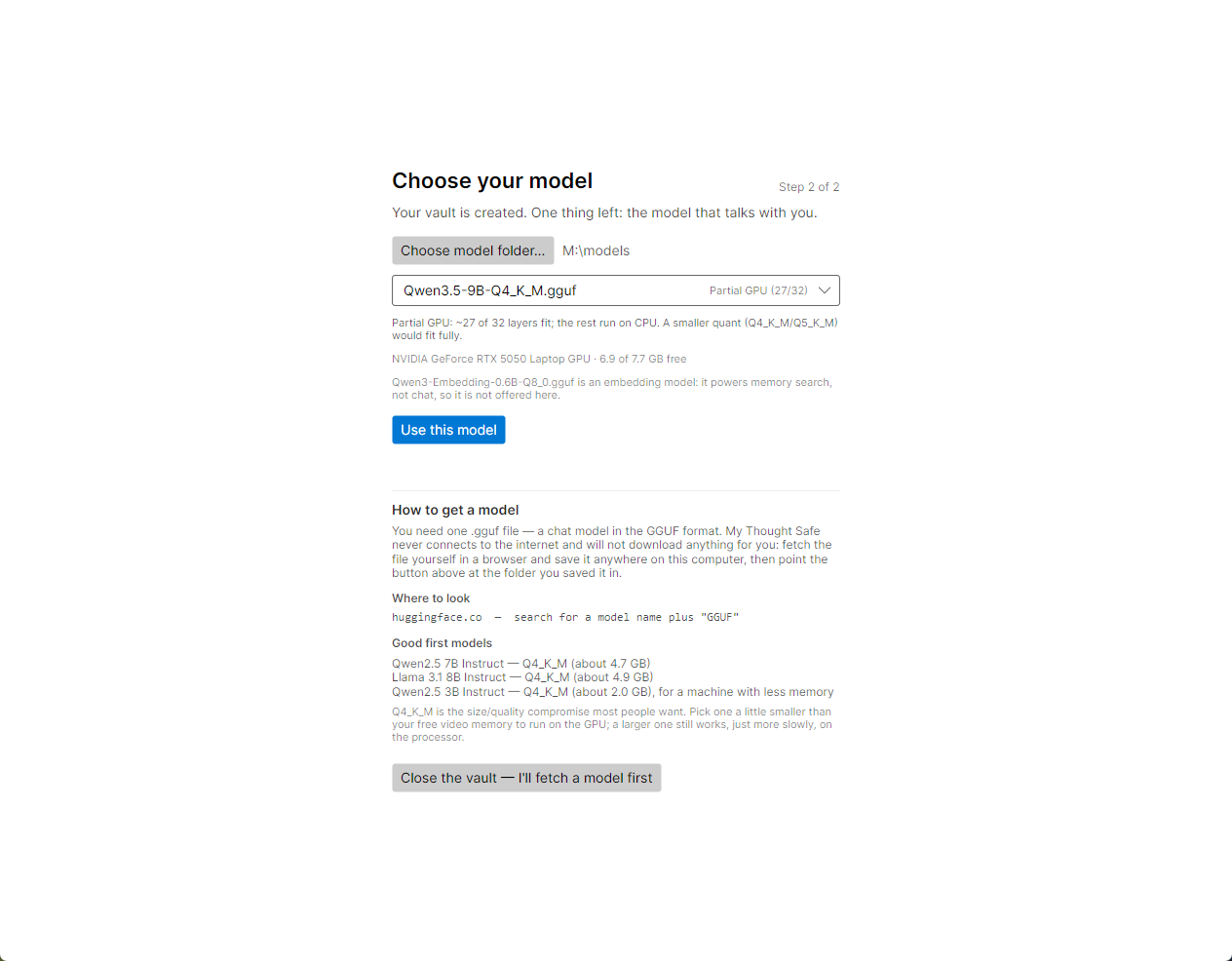
Right after creating a vault, the app asks for a model. You can also change it at any time in Settings → Model.
- Click Choose model folder…. Pick the folder that holds your
.gguffiles. Subfolders are searched too, so a whole LM Studio models folder works. - Pick a model from the list. Each entry shows a short fit estimate: Fits GPU, Partial GPU (20/36) or CPU only.
- Read the line under the list. It spells out the estimate, for example “Partial GPU: ~20 of 36 layers fit; the rest run on CPU, which is slower. A smaller file (a lower quant, or a smaller model) puts more of it on the GPU.” The line below that names the graphics card the app found and how much of its memory is free.
- Click Use this model (or Load in Settings).
The vault remembers the choice, so the model loads by itself every time you open that vault. Different vaults can use different models.
Embedding models (see below) aren’t offered in this list, because they can’t hold a conversation. When the folder contains one, a note under the list says so.
Graphics cards: NVIDIA, AMD and Intel#
The app runs models through llama.cpp’s Vulkan backend, which works with graphics cards from all three major vendors. There is nothing extra to install on Windows beyond your normal graphics driver. On Linux, you need the Vulkan loader and your card’s Vulkan driver (see Linux requirements).
Tested on NVIDIA only. AMD and Intel graphics cards are supported through Vulkan and are expected to work, but this release has only been tested on NVIDIA hardware. If you try it on AMD or Intel, the worst case is slower performance: the model can always run on the CPU instead.
By default, Use the GPU automatically (recommended) is on. When a model loads, the app works out how many of its layers fit in your card’s free memory, puts those on the card and runs the rest on the CPU. Everything on the card is fast; anything left for the CPU slows replies down.
If no card is found, the hardware line reads “No GPU detected — running on CPU. If you have one, its driver may not provide Vulkan; installing or updating the graphics driver is what enables it.” Some drivers don’t report how much memory is in use. In that case, the app says so and sizes the offload cautiously.
Tuning a model#
Each model has its own profile in Settings → Model, saved in the vault and applied whenever that model loads:
- GPU layers. Untick automatic GPU use to set the number yourself.
0means CPU only. - Context. How much text the model can see at once (its conversation window), in tokens. A bigger window lets the model take in more of the conversation and more memories, but it uses more graphics memory and can push layers off the card. The bar under these two controls shows the split as you change them: green for what’s on the card, gray for what runs on the CPU.
- Sampling. Temperature, top-p and the maximum reply length.
- Template. Auto uses the model’s own chat template, which is right for almost every model.
The settings reference covers every control.
Better memory search with an embedding model#
To find the memories that relate to what you’re writing, the app can compare meaning rather than just matching words. That needs an embedder, a model that turns text into numbers that can be compared. There are three possibilities, used in this order:
- A dedicated embedding model in your model folder. If the folder (or a subfolder) contains an embedding GGUF, the app uses it automatically (a reranker model in the same folder is skipped, since it can’t do this job). Its weights stay on the CPU, leaving the graphics card to your chat model. With more than one embedding model in the folder, the first by file name is used. These files are small, often well under 1 GB. Examples include nomic-embed-text, bge, gte, e5 and Qwen3-Embedding in GGUF form.
- The chat model itself, but only when it runs entirely on the CPU.
- Keyword matching, when neither is available. Memory still works, but it finds memories by shared words rather than shared meaning.
Settings → Memory & chat shows which one is active, for example “Semantic memory on · embedding with …”. If you run your chat model on a graphics card and haven’t added an embedding model, it reads “Semantic memory limited (model is on GPU) — add a small embedding GGUF to your folder for full recall; keyword matching is used meanwhile.”
Adding one is worth it if your chat model runs on a graphics card. Download an embedding GGUF into your model folder, then lock and reopen the vault. The app picks it up and indexes your existing memories in the background.
Keep only one embedding model in the folder. If there are several, the app uses the first one it finds. Reranker models aren’t embedders: they are kept out of the chat list too, but if one is the first found, the app falls back to the chat model rather than using it.
When the embedder changes, memories indexed by the old one are re-indexed automatically the next time the vault opens. Rebuild search index in Settings → Memory & chat re-reads everything, which is only needed after an update that changes how memories are indexed.
Taking a vault to another computer#
Model files are never stored inside your vault. Only the model’s file name and size are, together with its profile. When you open the vault on another computer, the app looks for a file with that name in:
- the model folder last used, and any folder the vault has found its model in before;
- the folder the vault file is in, and a
modelsfolder beside it; - a
modelsfolder beside the app, and the portable app’s own folder.
A file with the matching name and size is preferred. If only the name matches, perhaps because you downloaded a slightly different copy, that file is used. If nothing turns up, the sidebar says “Can’t find model name on this machine” and offers Locate model…. The folder you choose is remembered, so you only do this once per computer.
Travelling light: put the vault and a models folder side by side on a USB drive, with the portable app if you like. The model is found wherever the drive is plugged in.
Next step#
With a model loaded, you’re ready to start writing.