
Personas
A persona tells the AI who to be: a patient listener, a blunt coach, a study partner, or simply a friend who knows your history. Each conversation has its own, and the ones you like can be saved and reused.
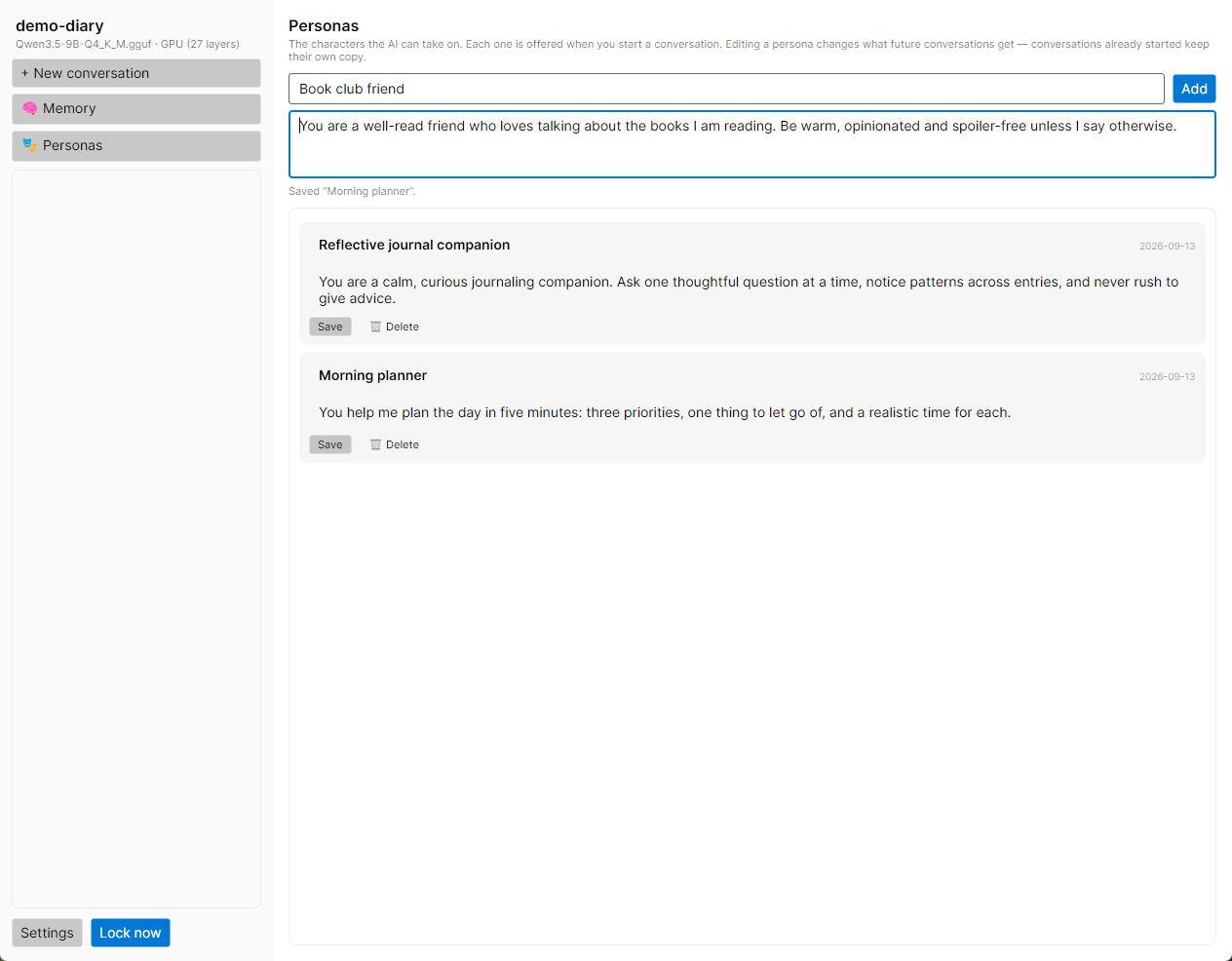
What a persona is#
A persona is a short piece of text, written to the AI, that describes the character it should take on. It becomes the conversation’s system prompt: the standing instruction the model reads before anything else, every time it replies. The app adds today’s date and time and any memories after it.
A persona has two parts:
- A name, such as “Therapist”. It labels the conversation in the sidebar and under the chat title, and it is how you find a saved persona again.
- The text, such as “You are a warm, patient therapist.” This is what the AI actually reads.
A conversation with no persona uses a built-in one: “You are a private, honest companion inside the user’s encrypted diary. Be thoughtful and candid.” The chat header then reads No persona.
Personas are stored inside the vault, encrypted like everything else. Each vault has its own.
Saved personas and the copy each conversation keeps#
When a conversation starts from a saved persona, it takes a copy of the text, not a link to it. This keeps a long-running conversation stable:
- Editing a saved persona changes what future conversations get. Conversations already started keep the text they were given.
- Deleting a saved persona leaves every conversation that used it untouched.
- Changing the persona of one conversation changes nothing else, unless you choose to copy the change back to the saved persona (see below).
Choosing a persona for a new conversation#
Click + New conversation. The app asks “Who am I?”:
- Give the conversation a title. It is required.
- Optionally, under Start from a saved persona, pick one. Its name and text fill the two boxes below, and you can change them for this conversation.
- Or type a Persona name and a Persona of your own.
- To keep what you typed for next time, tick Also save this persona as a reusable preset. A saved persona needs both a name and some text; the form says which is missing.
- Click Create. Skip persona starts the conversation with no persona, whatever the boxes hold, and Cancel starts nothing.
If you pick one saved persona and then another, the name follows your pick, unless you typed a name of your own, which is left alone. If you turned off Ask ‘Who am I?’ in Settings, new conversations start straight away with no persona; you can still add one afterwards.
The Personas screen#
Click 🎭 Personas in the sidebar to see every saved persona, oldest first.
Adding a persona#
- Type a name in the box that reads “New persona name — e.g. "Therapist"”.
- Type what it should be in the box below, which reads “What it should be — e.g. "You are a warm, patient therapist."”
- Click Add. Both boxes are required.
The new persona is offered from then on whenever you start a conversation.
Editing a persona#
Each row shows the persona’s name, the date it was created and its text. Click into the name or the text, make your change and click Save on that row. Changes aren’t kept until you click Save. A persona can’t be saved with an empty name or empty text; delete it instead if you no longer want it.
Deleting a persona#
Click 🗑 Delete on its row. The row asks “Delete this persona for good?”; click Delete to confirm or Keep it to back out. There is no undo.
Deleting a persona doesn’t touch any conversation that used it. If a model’s profile had it as its default persona, that default is cleared.
Changing the persona of a conversation#
A conversation’s persona isn’t fixed. In the chat, open Conversation & model settings above the context meter:
- Persona name is the label under the title. Leave it blank for no label.
- System prompt is the persona text. Clear it to go back to the built-in companion.
Click Save. The change applies from the next reply; replies already written stay as they were. The context meter updates straight away, since a longer persona leaves less room for everything else.
If a saved persona has the same name as this conversation’s persona (capital letters don’t matter), the panel also offers Also update the saved persona “…”. Clicking it copies the name and text in the panel over that saved persona, so future conversations get your improved version. Other conversations keep their own copy.
Two buttons, two jobs. Save changes this conversation only. Also update the saved persona changes the saved persona only. Click both if you want both.
A default persona for a model#
In Settings → Model, each model’s profile has a Default persona. When that model is loaded and you start a new conversation, the “Who am I?” form begins with that persona already picked. You can still change it or skip it. Leave it on None for an empty form.
This is handy when different models suit different roles: a small quick model as a daily check-in companion, a larger one as a thoughtful reflective listener.
Writing a good persona#
Models differ, so experiment, but a few habits help with most of them:
- Talk to the AI directly. “You are…” and “You…” work better than a description in the third person.
- Say how, not just who. “Ask one question at a time. Don’t rush to give advice.” shapes replies more than “You are a counselor.”
- Keep it short. A few sentences are plenty. The persona is sent with every reply and takes space the conversation and memories could use. The gray part of the context meter shows its cost.
- Leave facts about yourself to memory. Names, dates and circumstances are better as pinned facts, which can reach every conversation whatever its persona.
Example. You are a calm, thoughtful journaling companion. Help me notice patterns in what I write. Ask one gentle question at a time, and don’t offer advice unless I ask for it.
Next step#
See everything else you can adjust in the settings reference.