
Writing & conversations
Writing in My Thought Safe feels like messaging someone who has read your whole diary. This page covers the chat screen: conversations, the message bubbles, the context meter, and the settings each conversation keeps for itself.
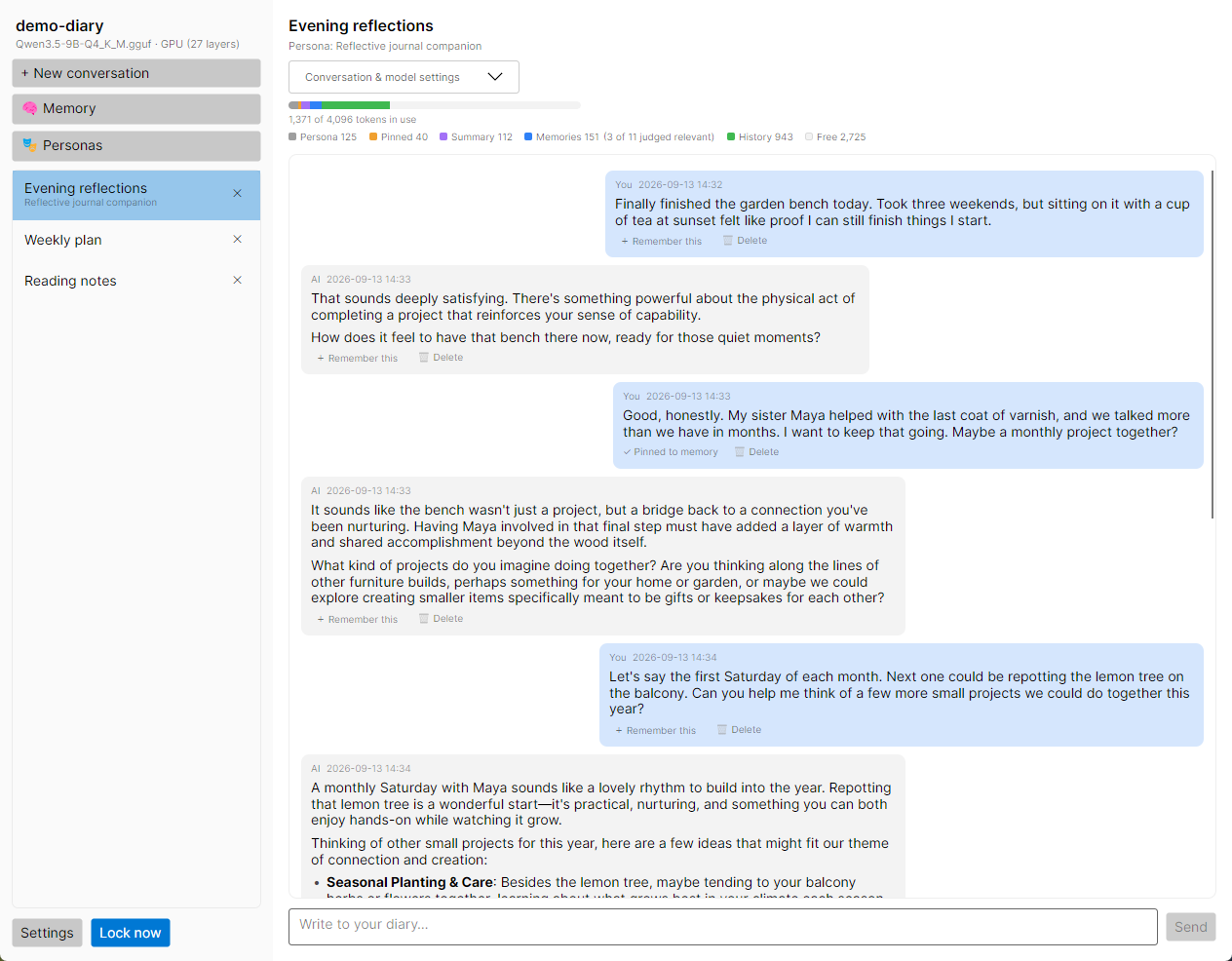
The screen at a glance#
The sidebar on the left shows the vault’s name and the state of the model underneath it:
| Model line | What it means |
|---|---|
| Loading model… | The model is being read into memory. A moving bar shows under it. This can take a little while for large models. |
| model.gguf · GPU (33 layers) | Ready, with that many layers on the graphics card. |
| model.gguf · CPU | Ready, running entirely on the processor. |
| No model loaded | Choose one in Settings → Model. |
| Can’t find name on this machine | The vault remembers a model this computer doesn’t have. Click Locate model…. See taking a vault to another computer. |
| Model failed to load (see Settings) | Settings → Model explains why. See troubleshooting. |
Below that are + New conversation, 🧠 Memory (see managing memories) and 🎭 Personas (see personas), then the list of conversations. Settings and Lock now sit at the bottom.
Conversations#
A vault holds as many conversations as you like. Each has its own title, its own persona and its own running summary. You might keep one long-running diary conversation, or start a fresh one for each topic or each week. The AI still remembers across them where you allow it (see how memory works).
Starting a new conversation#
Click + New conversation. The app asks “Who am I?”, which is your chance to give this conversation’s AI a persona: the character it should be.
- Conversation title. Anything you like. You can rename it later.
- Start from a saved persona (optional). Pick one of your saved personas to fill in the two fields below.
- Persona name, such as “Therapist”, and the persona itself, such as “You are a warm, patient therapist.”
- Also save this persona as a reusable preset keeps what you wrote for next time.
Click Create, or Skip persona to start without one. With no persona, the AI behaves as a private, honest companion inside your diary. If the loaded model has a default persona in its profile, the fields start filled in with it.
Don’t want the question every time? Untick Ask 'Who am I?' (persona) when starting a new conversation in Settings → Memory & chat. New conversations then start straight away, named “Conversation 1”, “Conversation 2” and so on.
Deleting a conversation#
Click the ✕ beside a conversation in the sidebar. A box under the list asks whether to delete it for good and says what goes with it, for example “Its messages are deleted, along with 12 remembered items from it. 1 memory you shared with all conversations is kept.” Click Delete to confirm or Keep it to back out.
There is no undo. The conversation, its messages and the memories that belong only to it are removed from the vault: excerpts, its summary, notes and pinned facts. Memories you shared with all conversations are kept. If you might want the conversation later, back up first.
Writing#
Type in the box at the bottom, where it says “Write to your diary…”. The box grows as you write.
- Enter sends. Shift+Enter starts a new line.
- While the AI is replying, Send becomes Stop. Stopping keeps what it has written so far.
- Sending needs a loaded model. Your message is saved into the vault the moment you send it.
You can switch to another conversation while a reply is being written. The reply carries on in the background, and when you come back it’s there, still arriving or finished.
The AI always knows the current date and time, and every message it sees carries the time it was written. So it can tell that something you said was last Tuesday, and answer questions like “how long have I been worrying about this?”
Messages#
Each message shows who wrote it (You or AI) and when, as a local time such as 2026-09-13 21:04. Replies are formatted: lists, headings, emphasis and code display as you’d expect.
Models that reason before they answer show a collapsed Show thinking section above the reply. It reads Thinking… while that part is being written. Open it if you’re curious how the model got to its answer.
Remember this#
Click + Remember this under any message to pin its text as a fact the AI always keeps in mind. The button changes to “✓ Pinned to memory”, and the message stays marked while the pin exists, including after you leave and come back. Pinned facts belong to this conversation unless you share them in the Memory screen. Use it for things that should never be forgotten: names, circumstances, what matters to you.
Deleting an entry#
Click 🗑 Delete under a message. The bubble asks “Delete this entry for good?”. Click Delete to confirm or Keep it to back out.
Deleting removes the message and its copy in memory, and the conversation’s summary is rebuilt without it. One thing can linger: facts the AI distilled from the conversation don’t record which message they came from, so they stay. The app tells you so, and you can remove them in the Memory screen.
Entries can’t be deleted while a reply is being written. Wait for it to finish, or click Stop.
Pointing back at an earlier entry#
Long conversations outgrow what the model can see at once. Older messages then reach it only through the summary and memory, which condense them. When you want the AI to look at exactly what was said, point at it:
- Scroll to the message and click its time stamp.
- The stamp is added to what you’re writing, for example [2026-08-02 22:15].
- Finish your message (“what did I mean by this?”) and send.
The app finds that entry and puts it in front of the model in full. You can type a stamp yourself too, in the same YYYY-MM-DD HH:MM form. Stamps are looked up in the conversation you’re in, or in the whole diary if Let the AI use your whole diary, not just this conversation is on.
You don’t always need to be that precise. The app also notices:
- Time phrases such as yesterday, today, this week, last week, last month, recently or the past 3 days. It gathers a short overview of what you wrote in that period. The same setting decides whether this covers one conversation or all of them.
- The start of the conversation: “what was the first thing I asked?” or “how did this chat start?” brings back its opening messages.
- Answers by number. When the AI gives you a numbered list and you reply just “3”, the app tells the model which item you meant.
Everything else, such as “what did I say about my sister?”, is found by memory search. See how memory works.
The context meter#
The bar above the messages shows how the model’s context window is being spent: everything it can see while writing its next reply. The line beside it reads, for example, “5,210 of 8,192 tokens in use”. A token is roughly three-quarters of a word. Hover over any color in the key for a description.
| Color | Part | What it is |
|---|---|---|
| Persona | The persona or system prompt, plus standing instructions such as today’s date and time. | |
| Pinned | Facts pinned with Remember this, always kept in mind. If they don’t all fit, the key says how many did, e.g. (12 of 14 facts fit). | |
| Summary | A running summary of the earlier part of this conversation. | |
| Memories | Memories and past diary entries recalled as relevant to what you just wrote. The note says how many were judged relevant and how many were condensed or shortened to fit. | |
| History | The most recent messages, word for word. | |
| Free | Room left. |
When you open a conversation, the meter already counts what your next reply is sure to carry: the persona, your pinned facts and the summary. Blue memories appear once you send something, because they depend on what you write.
As a conversation grows, green history fills the bar. Once it can’t all fit, the oldest messages leave the window and are folded into the purple summary, while blue memories bring back whichever older moments matter to what you’re saying now. The most recent few exchanges always stay word for word. That is how a conversation can run on long after it has outgrown the model. How memory works explains it in detail.
Reading the meter. Plenty of free space is good. If memories are often condensed or shortened, or pinned facts don’t all fit, a larger context window helps, as long as your graphics card has room for it. See below.
Conversation & model settings#
Above the meter, open Conversation & model settings to adjust this one conversation. Anything you leave matching the model’s profile keeps following the profile; only what you change is stored for the conversation.
| Section | Setting | Notes |
|---|---|---|
| This conversation | Title | Required. |
| Persona name | Optional label shown under the title. | |
| System prompt | The persona itself. Takes effect on the next reply; replies already written stay as they were. | |
| Sampling | Temperature | 0 to 2. Lower is steadier and more predictable; higher is more varied. |
| Top-p | 0 to 1. Limits choices to the most likely words. | |
| Repeat penalty | 1 to 2. Discourages repeating itself; 1.0 turns it off. | |
| Longest reply | 16 to 16,384 tokens. | |
| Model memory | Context window | How much the model can see at once. Bigger holds more history and memories but needs more graphics memory. |
| GPU layers | Leave Let the app choose how much runs on the GPU ticked, or set the number yourself. The bar shows the GPU and CPU split as you move the sliders. |
Click Save. Sampling applies to the next reply. The context window and GPU layers are fixed when a model loads, and only one model is loaded at a time, so the panel notes when they differ from what’s loaded and offers Reload model.
If the conversation started from a saved persona, Also update the saved persona copies your changes back to it. Other conversations that already use it keep their own copy.
Settings can’t be saved while a reply is being written.
When you step away#
Lock now or Ctrl+L closes the vault at once. It also locks itself after a few minutes of inactivity. Nothing you’ve sent is lost; a reply still being written is cut off. See locking.
Next#
Read how memory works to get the most out of long conversations.